Why Is My Dropdown Getting Cut Off?

Dropdown Fix

Why is my dropdown getting cut off even with a huge z-index?

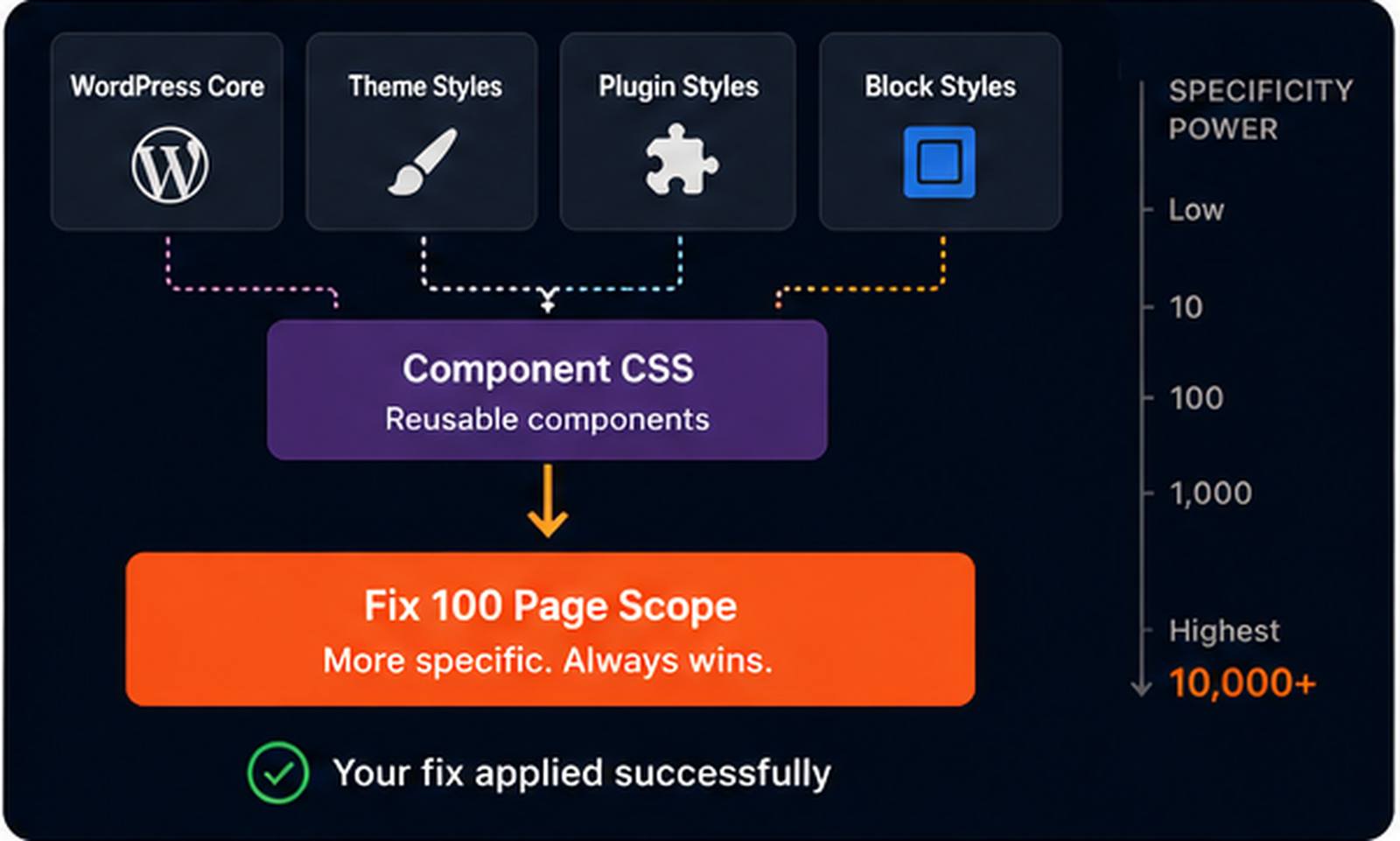
Why is my dropdown getting cut off? In many real layouts, the dropdown is not failing because its z-index is too small. The real problem is usually overflow: hidden, overflow: auto, a broken positioning setup, or a stacking context that traps the menu inside the wrong layer.

  • Classic UI bug
  • Often blamed on z-index
  • Usually a clipping issue

What the bug looks like

The menu opens but gets cut off by the parent, disappears behind the next section, or looks half visible and unusable.

Why it happens

Dropdowns need both visual space and correct layering. If the parent clips overflow or traps the menu in the wrong context, the dropdown cannot escape cleanly.

What usually fixes it

Check parent overflow first, then verify positioning and stacking context before touching z-index again.

Common broken version

Clipped dropdown
.menu-wrap {
  position: relative;
  overflow: hidden;
}

.dropdown-menu {
  position: absolute;
  top: 100%;
  left: 0;
  z-index: 9999;
}

Why this fails

The dropdown menu has a high z-index, but the parent still clips it. This is the mistake that confuses a huge number of developers: z-index cannot defeat physical clipping from overflow: hidden.

Simple rule: if the parent is cutting the child, a bigger z-index usually changes nothing.

Recommended positioning pattern

Correct structure

In many navigation and action menus, the safest baseline is a relatively positioned parent and an absolutely positioned dropdown menu.

.nav-item {
  position: relative;
}

.dropdown-menu {
  position: absolute;
  top: 100%;
  left: 0;
  min-width: 220px;
  z-index: 100;
}

The invisible villain: overflow clipping

One of the most common answers to “why is my dropdown getting cut off?” is simply that the menu is inside a wrapper designed to clip content.

This happens in cards, panels, tables, responsive wrappers, sliders, carousels, and custom UI containers. The dropdown may be perfectly positioned, but the parent refuses to let it visually escape.

Possible fix

Let the menu escape
.menu-wrap {
  position: relative;
  overflow: visible;
}

.dropdown-menu {
  position: absolute;
  top: 100%;
  left: 0;
}

A high z-index does not beat clipping

If a parent cuts visual overflow, the child cannot simply “win” by using a bigger number.

Layering and clipping are not the same bug

A dropdown hidden behind another section is a layering problem. A dropdown physically cut off by its own parent is a clipping problem.

Fix the right problem first

If you solve clipping first, many “z-index not working” bugs suddenly stop being mysterious.

Stacking context trap

Not just a z-index issue
.section {
  position: relative;
  transform: translateZ(0);
}

.dropdown-menu {
  position: absolute;
  z-index: 9999;
}

Why z-index still seems broken

A parent with transform, opacity, filter, or similar properties can create a new stacking context. That means the dropdown is no longer competing globally. It is trapped inside the parent’s layer system.

This is why a menu can still sit behind the next section even with a giant z-index value.

Fast practical rule

If your dropdown is getting cut off, inspect the parent for overflow: hidden before touching z-index again. That one check solves a huge percentage of real dropdown bugs.

Why this happens so often in sliders, tables, and carousels

Sliders and carousels often use clipped wrappers on purpose. Responsive tables and scroll containers also hide overflow to control layout. That makes dropdown menus inside those components unusually likely to get cut off.

In those cases, the menu may need to live outside the clipped wrapper or be rendered in a higher layer container.

Classic slider problem

Wrapper clips the menu
.slider-track {
  overflow: hidden;
}

.slide-menu {
  position: absolute;
  top: 100%;
  left: 0;
}

Advanced escape pattern

Move the menu higher
.dropdown-layer {
  position: relative;
  z-index: 200;
}

/* render the menu in a higher layer container
   instead of leaving it inside a clipped card */

When the best fix is structural

Sometimes the dropdown does not belong inside the clipped component at all. If the parent must keep overflow: hidden for layout reasons, the cleaner solution may be to move the menu higher in the DOM or render it into a dedicated layer container.

In framework-based apps, this is often done with a portal. In simpler layouts, it may mean restructuring the markup.

Debug checklist

  • Inspect the parent chain for overflow: hidden, overflow: auto, or clipped wrappers.
  • Confirm the trigger wrapper is positioned with position: relative.
  • Confirm the dropdown itself is positioned intentionally, usually with position: absolute.
  • Look for parents using transform, opacity, filter, or other stacking-context properties.
  • Check whether the dropdown is inside a slider, carousel, table wrapper, or card component that must clip overflow.
  • Temporarily switch suspected parents to overflow: visible while debugging.
  • Only adjust z-index after you understand whether the bug is clipping or layering.
Best first move Inspect the closest parent and see whether it is clipping overflow before increasing z-index.
Most common false fix Jumping from z-index: 10 to z-index: 9999 while the parent is still cutting the menu off.
Most overlooked cause The dropdown is inside a slider, carousel, or table wrapper that was never designed to let children escape visually.
Better mindset Dropdown bugs are often structural. Fixing the wrong layer or the wrong parent wastes time fast.

Final takeaway

Why is my dropdown getting cut off? In most cases, the browser is not ignoring your z-index. The real issue is usually that the menu is being clipped by a parent, trapped inside the wrong stacking context, or positioned inside a structure that was never meant to let it escape.

Fix overflow first, verify positioning second, and only then adjust layering. Once you separate clipping from z-index problems, dropdown bugs become much easier to solve and much less frustrating.

Want more fixes like this?

Browse more CSS and layout debugging guides or jump to the full FrontFixer library.

Why Is My Fixed Header Covering Content?

Layout Fix

Why is my fixed header covering content even though the layout looks normal?

Why is my fixed header covering content? In most cases, the browser is doing exactly what you asked. A header with position: fixed is removed from the normal document flow, which means the content below it no longer reserves space for it. That is why titles, hero sections, and anchor links often slide underneath the header instead of starting below it.

  • Classic layout bug
  • Usually caused by fixed positioning
  • Often fixed in minutes

What the bug looks like

The page title starts behind the header, the hero looks cut off, or the top of the content seems hidden the moment the page loads.

Why it happens

Fixed elements do not take up normal layout space. The content below them behaves as if the header is not occupying any vertical room.

What usually fixes it

Add an offset equal to the header height, then handle anchor links with scroll-margin-top or use position: sticky when appropriate.

Common broken version

Header overlaps content
.site-header {
  position: fixed;
  top: 0;
  left: 0;
  width: 100%;
  height: 80px;
}

main {
  /* no top offset */
}

Why this fails

The header is fixed to the viewport, but the main content still starts at the top of the page. Since the header no longer occupies normal layout space, the content slides underneath it.

Simple rule: if a fixed header has height, the content usually needs an offset that matches that height.

Traditional fix

Add top spacing

The most common fix is to add top padding to the content wrapper, main area, or body so the first visible section begins below the fixed header.

.site-header {
  position: fixed;
  top: 0;
  left: 0;
  width: 100%;
  height: 80px;
}

main {
  padding-top: 80px;
}

A safer version with a custom property

Hard-coding the same height in multiple places works, but it becomes fragile when the header changes later. A custom property makes the relationship easier to maintain.

Better long-term pattern

Single source of truth
:root {
  --header-height: 80px;
}

.site-header {
  position: fixed;
  top: 0;
  left: 0;
  width: 100%;
  height: var(--header-height);
}

main {
  padding-top: var(--header-height);
}

The content is hidden, not missing

Developers often think the top section “disappeared,” but it is usually just sitting underneath the fixed header.

The header height may change on mobile

If the header becomes taller on smaller screens, your desktop offset may stop matching the real height.

Shrinking headers need extra care

If the header changes size while scrolling, a static offset may work at load but feel wrong during navigation.

Fast practical rule

If your fixed header is covering content, do not fight the symptom with random margin guesses. Measure the real header height first, then offset the content intentionally.

Why anchor links still break

Many developers fix the top of the page, then click a navigation anchor and discover that the target heading still lands behind the fixed header.

This happens because the browser scrolls the target to the top edge of the viewport, where the fixed header is still covering it.

Modern anchor fix

Use scroll-margin-top
section,
h2,
h3 {
  scroll-margin-top: 96px;
}

Alternative at the scroll container level

Use scroll-padding-top
html {
  scroll-padding-top: 96px;
}

When to use this

scroll-padding-top is useful when the document itself is the scroll container and you want a global offset for anchor navigation.

scroll-margin-top is often more targeted. scroll-padding-top is broader. Both can be excellent depending on the layout.

Sticky vs fixed: which one do you actually need?

Many people use position: fixed by default, then spend time fixing overlap bugs that would not exist with position: sticky.

A sticky header stays in the normal flow until it reaches its sticking point. That means the document still reserves space for it, which often avoids the classic “content hidden behind the header” problem.

Sticky alternative

Often simpler
.site-header {
  position: sticky;
  top: 0;
  z-index: 100;
}

Use fixed when the header must stay pinned

Fixed works well when the header must remain attached to the viewport at all times and you are prepared to manage the offset intentionally.

Use sticky when flow matters

Sticky is often better when you want the header to participate in normal layout before sticking, especially for simpler document-style pages.

Do not treat them as interchangeable

They can feel similar visually, but they behave very differently in layout. Choosing the wrong one creates unnecessary bugs.

Debug checklist

  • Measure the real header height instead of guessing it.
  • Check whether the header height changes between desktop and mobile.
  • Confirm the content wrapper, main, or first section has a matching top offset.
  • Test in-page anchor links to see whether section headings still land behind the header.
  • Use scroll-margin-top or scroll-padding-top for anchor navigation.
  • Ask whether position: sticky would solve the UX need more cleanly than position: fixed.
Best first move Inspect the header height and apply a deliberate content offset before changing anything else.
Most overlooked issue Anchor links can still break even after the top of the page looks fixed.
Most common wrong instinct Blaming z-index when the real issue is simply that the header left document flow.
Better mindset Fixed headers are not broken by default. They just require layout compensation because the browser no longer reserves space for them.

Final takeaway

Why is my fixed header covering content? Because a fixed header is removed from normal flow, and the content below it is not automatically pushed down. The browser is not making a mistake. It is following the layout model exactly.

Add an intentional top offset, protect anchor links with scroll-margin-top or scroll-padding-top, and consider position: sticky if you do not actually need a fully fixed header. Once you understand that, this bug becomes much easier to solve and much easier to avoid.

Want more fixes like this?

Browse more responsive and layout debugging guides or jump to the full FrontFixer library.

Why Is My Media Query Not Working?

Responsive Fix

Why is my media query not working even though the CSS looks right?

If your mobile styles are not applying, your breakpoint seems ignored, or your layout stays stuck in desktop mode, the browser is usually not being random. The real problem is usually a missing viewport tag, invalid syntax, CSS specificity conflicts, wrong rule order, a typo, or a layout issue that makes the media query look broken.

  • Classic responsive bug
  • Usually a setup or cascade issue
  • Often fixed fast once diagnosed

What the bug looks like

The breakpoint seems ignored, mobile styles never appear, columns stay stuck in desktop mode, or the page still looks broken after the media query should have fired.

Why it happens

Media query bugs are usually caused by setup mistakes, invalid conditions, CSS conflicts, or layout assumptions that were never truly responsive to begin with.

What usually fixes it

Check the viewport tag, verify syntax, inspect rule order and specificity, then confirm the layout itself is actually flexible at that breakpoint.

Recommended baseline

Safe starting point

Start with the correct viewport tag, a clean media query, and a layout that actually has something flexible to change.

<meta name="viewport" content="width=device-width, initial-scale=1">

.container {
  width: min(100%, 1200px);
  margin-inline: auto;
  padding-inline: 16px;
}

.cards {
  display: grid;
  grid-template-columns: repeat(3, minmax(0, 1fr));
  gap: 24px;
}

.card {
  min-width: 0;
}

img {
  max-width: 100%;
  height: auto;
}

@media (max-width: 768px) {
  .cards {
    grid-template-columns: 1fr;
    gap: 16px;
  }
}

1. The viewport tag is missing

This is one of the most common answers to the question: why is my media query not working on mobile? Without the correct viewport tag, mobile browsers can pretend the page is desktop-sized and then scale it down visually.

That means your CSS may technically exist, but the browser is not rendering the page in a true mobile viewport.

Correct viewport tag

Required for real mobile behavior
<meta name="viewport" content="width=device-width, initial-scale=1">

Broken syntax example

Tiny mistake, big confusion
@media screen and(max-width: 768px) {
  .menu {
    display: none;
  }
}

2. Your media query syntax is invalid

Media query syntax is not forgiving. Missing spaces, malformed conditions, wrong punctuation, or invalid grouping can make the browser ignore the rule or interpret it differently than you expect.

The example above is broken because the spacing around and is wrong. Small errors like this waste hours because the CSS “looks almost right.”

Correct syntax

Readable and valid
@media screen and (max-width: 768px) {
  .menu {
    display: none;
  }
}

3. Your media query is being overridden

Sometimes the media query does work, but another rule with stronger specificity or later placement wins the cascade. This is one of the biggest reasons developers think the breakpoint is broken when the real problem is CSS order.

If your mobile rule appears first and the desktop rule appears later with equal or stronger specificity, the later rule can wipe out the mobile style.

Common override problem

Rule order conflict
@media (max-width: 768px) {
  .card-title {
    font-size: 18px;
  }
}

.card-title {
  font-size: 28px;
}

Safer order

Desktop first example
.card-title {
  font-size: 28px;
}

@media (max-width: 768px) {
  .card-title {
    font-size: 18px;
  }
}

4. Your breakpoint logic is fighting your layout

A media query can be perfectly valid and still feel wrong if the logic behind it does not match the layout. Using the wrong breakpoint value, confusing min-width and max-width, or following no clear mobile-first or desktop-first logic creates confusion fast.

The rule may fire exactly when asked, but still fail to solve the real layout problem.

5. The bug is just a typo

Misspelling max-width, using the wrong class name, forgetting a closing brace, or writing the wrong selector is painfully common.

6. The media query works, but the layout is still rigid

One fixed-width container, oversized image, code block, or long string can make the whole page look non-responsive even when the media query actually fires.

The CSS file may not be updating

Browser cache, plugin cache, build issues, or stale compiled files can make you think your latest media query changes are not applying.

Fast practical rule

If your media query is not working, do not start by changing random breakpoint numbers. First confirm the viewport tag exists, then inspect syntax, then check whether another rule is winning the cascade.

Debug checklist

  • Confirm the page includes <meta name="viewport" content="width=device-width, initial-scale=1">.
  • Check the media query syntax carefully for spacing, braces, and valid conditions.
  • Inspect whether the selector inside the media query is being overridden by another rule later in the cascade.
  • Verify whether the breakpoint should use max-width or min-width.
  • Look for typos in property names, selectors, units, or class names.
  • Use DevTools to confirm whether the media query is firing and whether one child element is still breaking the layout.
  • Clear cache if you suspect the browser or platform is showing stale CSS.
Best first move Open DevTools, resize the viewport, and confirm whether the media query is actually activating before changing any code.
Most overlooked cause The viewport tag is missing, so the browser never behaves like a true mobile viewport in the first place.
Most frustrating cause The media query works, but another CSS rule later in the file silently overrides it.
Better mindset A media query is only part of responsive design. If the layout itself stays rigid, the breakpoint alone cannot save it.

Example of a layout that still feels broken

Even if the media query fires, a rigid container or overflowing child can keep the page feeling stuck in desktop mode. This is where many people wrongly conclude that the media query itself is dead.

Still rigid on mobile

Breakpoint fires, bug remains
.wrapper {
  width: 1200px;
}

@media (max-width: 768px) {
  .layout {
    grid-template-columns: 1fr;
  }
}

Final takeaway

Why is my media query not working? In most cases, the media query is not the villain. The real issue is usually missing viewport setup, invalid syntax, CSS order conflicts, incorrect breakpoint logic, a typo, or a rigid layout that still refuses to adapt.

Fix the real cause instead of guessing new breakpoint values, and responsive debugging becomes much faster and much less frustrating.

Want more fixes like this?

Browse more responsive debugging guides or jump to the full FrontFixer library.

Fix position: sticky not working

Layout Fix

Fix position sticky not working.

If your sticky sidebar, header, filter bar, or table header refuses to stick, the problem is usually not sticky itself. It is usually a missing top value, a parent with overflow, or a layout context that prevents sticky behavior from ever activating.

  • Classic layout bug
  • Usually one hidden cause
  • Explained step-by-step

What the bug looks like

A sticky header scrolls away, a sidebar never sticks, or an element with position: sticky behaves exactly like relative.

Why it happens

Sticky depends on both the element and its surrounding layout. If the scroll container or parent rules are wrong, sticky never gets a chance to activate.

What usually fixes it

Add a proper offset, remove the wrong overflow from parents, and make sure the element actually has room to stick while the page scrolls.

Recommended base pattern

This is the clean starting point for most sticky headers, sidebars, and utility bars.

.sidebar {
  position: sticky;
  top: 24px;
}

Common broken version

.sidebar {
  position: sticky;
}

Why this fails

Sticky needs a threshold. Without something like top: 0;, the browser has no clear point where the element should start sticking.

Rule of thumb: if sticky is not working, check the offset first. It is the fastest win.

Fast practical rule

If sticky is failing, do not start by changing ten layout properties. First ask three questions: does it have top? does a parent have overflow? is there enough scroll area for sticky to visibly activate?

The overflow trap

One of the biggest sticky killers is a parent element with overflow: hidden, overflow: auto, or overflow: scroll.

Sticky works relative to its scroll container. If the wrong parent becomes that container, sticky can appear broken or can stop at the wrong place.

Common sticky-breaking parent

.layout {
  overflow: hidden;
}

.sidebar {
  position: sticky;
  top: 24px;
}

Debug checklist

  • Make sure the sticky element has an offset such as top: 0; or top: 24px;.
  • Inspect all parent elements for overflow: hidden, auto, or scroll.
  • Check whether the sticky element is inside a container that is too short to allow visible sticky movement.
  • If the sticky element is in a flex or grid layout, inspect alignment and height behavior.
  • Test whether transforms or unusual wrappers are changing the layout context in unexpected ways.
Best first move Add top and inspect parent overflow before touching anything else.
Most overlooked cause Sticky often “fails” because the parent is not tall enough for the behavior to become visible during scroll.
Clean mindset Sticky is a layout relationship, not just a property. Debug the container chain, not only the element itself.

Sticky inside grid or flex layouts

Sticky can work inside grid and flex layouts, but the surrounding structure matters. If the column height is weird, the parent is stretched oddly, or overflow rules are fighting the scroll area, sticky may look unreliable.

This is why a sticky sidebar that works in one layout can fail in another with almost the same code.

Safer sidebar pattern

.layout {
  display: grid;
  grid-template-columns: 1fr 320px;
  gap: 24px;
}

.sidebar {
  position: sticky;
  top: 24px;
  align-self: start;
}

Helpful test

.sticky-test {
  position: sticky;
  top: 0;
  background: white;
}

Why this helps

A simplified sticky test helps separate “sticky is broken” from “my layout is breaking sticky.” If the basic version works, the real problem is probably in the parent structure.

Want more fixes like this?

Browse more layout debugging guides or jump to the full fix library.

Fix overflow causing horizontal scroll

Overflow Fix

Fix overflow causing horizontal scroll without hiding the real bug.

If your page moves sideways on mobile, shows an ugly bottom scrollbar, or feels wider than the screen, the real problem is usually not the whole layout. It is usually one element that is wider than it should be and is forcing the page to overflow.

  • Very common mobile bug
  • Usually caused by one element
  • Easy to debug with the right method

What the bug looks like

The whole page slides left and right, a bottom scrollbar appears, or content looks cut off at the right edge of the viewport.

Why it happens

Browsers do not create horizontal scroll for no reason. It appears because at least one element is wider than the space available to it.

What usually fixes it

Find the single overflowing element, then remove the rigid width, allow wrapping, or make the child shrink correctly inside its container.

Why overflow bugs are so annoying

Overflow bugs feel bigger than they are because they affect the entire page. One bad element can make the whole interface feel broken, even when 99% of the layout is fine.

That is why many developers panic and start changing wrappers, sections, containers, and breakpoints everywhere. But most of the time, the page does not need a full rewrite. It needs one overflowing element to stop being stubborn.

Common signs you should inspect width first

The page looks fine on desktop but breaks on mobile A fixed-width element may only become a problem once the screen gets tight.
One section feels “slightly off” Sometimes the bug is subtle visually, but still wide enough to trigger horizontal scroll.
You keep hiding the symptom, but it comes back That usually means the real overflowing element was never identified.

Recommended base fix

Safer starting point

This is a strong baseline pattern for pages that are overflowing on mobile or narrower screens.

html, body {
  max-width: 100%;
}

img,
video,
iframe {
  max-width: 100%;
  height: auto;
}

pre,
code {
  overflow-x: auto;
}

.flex-child,
.grid-child {
  min-width: 0;
}

.long-text {
  overflow-wrap: anywhere;
}

Common broken version

Weak width logic
.hero {
  width: 100vw;
  padding: 0 24px;
}

.card {
  width: 420px;
}

Why this fails

100vw can create extra width in ways that surprise people, especially when combined with padding, wrappers, or browser scrollbar behavior.

A fixed-width card can also become wider than the mobile viewport, which forces the whole page to overflow.

Simple rule: if one element insists on a hard width, it can easily become the reason the entire page scrolls sideways.

100vw used in the wrong place

It often looks like the “full-width” solution, but it can quietly create more width than the viewport should allow.

Fixed widths on mobile

A card, table, image, or wrapper with a hard width can become the exact element that breaks the page.

Children that do not shrink

Flex and grid layouts often need min-width: 0; to let children actually respect the available space.

Fast practical rule

Horizontal scroll is almost never a page-level mystery. It is usually one bad actor. Your job is to find the widest element on the page and fix that element first.

How to find the culprit fast

The fastest way to debug horizontal scroll is to stop guessing and inspect what is actually wider than the viewport.

  • Open DevTools and switch to a mobile width.
  • Look for any element extending past the right edge of the viewport.
  • Inspect wrappers, cards, images, tables, button rows, code blocks, and embeds first.
  • Check whether a grid or flex child needs min-width: 0;.
  • Look for hard widths like width: 400px, min-width: 500px, or width: 100vw.
Most common cause A child element is wider than the container, but the whole page gets blamed for the bug.
Most overlooked fix Add min-width: 0; to flex or grid children that contain long text, buttons, or nested layouts.
Best mindset Do not hide the bug first with overflow-x: hidden. Find the cause, then decide whether clipping is really appropriate.

Why overflow-x: hidden is not always the real fix

Many people “solve” horizontal scroll by putting overflow-x: hidden on the body. Sometimes that hides the symptom, but not the underlying problem.

If the layout is actually broken, clipping the page can also hide content, cut off menus, or create harder bugs later.

It can be useful, but it should not be your first move when you still do not know what is overflowing.

Safer responsive helpers

Cleaner support rules
.container {
  width: min(100%, 1200px);
  margin-inline: auto;
  padding-inline: 16px;
}

img,
video,
iframe {
  max-width: 100%;
}

.button-row {
  flex-wrap: wrap;
}

.table-wrap {
  overflow-x: auto;
}

Helpful debug trick

Temporary visual aid
* {
  outline: 1px solid rgba(255, 0, 0, 0.15);
}

Why this helps

A light temporary outline can make the overflowing element much easier to spot, especially in complex layouts where the problem is visually subtle.

Use it while debugging, then remove it when you are done. It is simple, noisy, and surprisingly effective.

Final takeaway

Horizontal scroll usually feels like a giant layout failure, but it is often just one element refusing to behave inside the available space. That is why the smartest move is not hiding the symptom first. It is finding the real overflowing element and fixing the width logic where the bug actually starts.

When you do that, the page stops feeling fragile, mobile gets cleaner, and the whole layout becomes easier to trust.

Want more fixes like this?

Browse more responsive and layout debugging guides or jump to the full FrontFixer library.

Fix HTML structure problems

HTML Fix

Fix HTML structure problems before they quietly break your layout.

If your layout feels random, CSS seems inconsistent, spacing breaks without a clear reason, or responsiveness keeps failing in weird ways, the real problem is often not your CSS at all. It is usually weak HTML structure underneath the page.

  • Often mistaken for a CSS issue
  • Breaks layouts silently
  • Common in real production work

Why HTML structure problems feel like CSS bugs

This kind of issue is frustrating because the visible symptom often appears in CSS, while the real cause lives in the markup. A section looks misaligned, a card refuses to behave, spacing feels inconsistent, or a responsive layout collapses too early. So the developer keeps changing CSS rules, but the bug never really leaves.

That is why HTML structure problems are so expensive in real projects. They make the wrong layer look guilty.

Common signs you should inspect the HTML first

Styles only work partially One part of the layout responds correctly while another part ignores the same logic.
Spacing feels inconsistent Margins, gaps, or alignment behave differently even when the CSS looks reasonable.
Responsive fixes feel weak You add breakpoints, but the mobile layout still feels structurally wrong.

Correct structure example

Cleaner markup
<section class="container">
  <div class="card">
    <h2>Title</h2>
    <p>Content</p>
  </div>
</section>

Broken version

Weak structure
<section>
  <h2>Title</h2>
</section>

<div class="card">
  <p>Content</p>
</div>

Why this fails

The layout is split into pieces that no longer belong together. The title and content are visually part of the same component, but the HTML does not reflect that relationship. Once the structure is broken like this, spacing, borders, card styles, background behavior, and responsive handling all become less predictable.

In simple terms: the CSS is not confused. The HTML is sending the wrong message.

Wrong parent-child logic

If elements are grouped visually but separated structurally, the layout often loses control over spacing and styling.

Weak component boundaries

A component should be wrapped as one logical unit. If it is split across unrelated containers, the CSS becomes harder to trust.

Harder long-term maintenance

Even if the broken version “works today,” it often creates more debugging pain the moment the design grows or the content changes.

Fast rule

If CSS feels broken, inspect the HTML first. A weak structure can make perfectly reasonable CSS look unreliable.

Debug checklist

  • Check parent-child relationships and confirm the markup groups elements the same way the design groups them.
  • Remove unnecessary wrapper divs that add complexity without adding structure.
  • Inspect the DOM in DevTools instead of assuming the markup matches the visual layout.
  • Confirm wrappers, containers, and inner layout layers actually exist where the CSS expects them.
  • Look for components split across unrelated parents, which often causes spacing and styling failures.

What better HTML improves

Cleaner layout control Stronger structure gives CSS a clearer foundation to work with.
More stable responsiveness Mobile fixes work better when the markup already reflects the real layout logic.
Easier maintenance Future edits become simpler when the HTML is readable, intentional, and less bloated.

Final takeaway

A lot of front-end bugs that look like CSS problems are actually structure problems wearing a CSS costume. That is why one of the smartest debugging habits you can build is checking the HTML before you keep stacking more layout rules on top of a weak foundation.

Clean markup makes styling easier, responsive behavior stronger, and future edits much less painful.

Fix structure first, then let CSS work properly.

Clean HTML makes layout behavior more predictable, reduces debugging time, and gives your CSS a much stronger foundation.

Fix container width problems

Layout Fix

Fix container width problems before your layout starts feeling off.

If your page looks too wide, too narrow, visually unbalanced, or strangely misaligned between sections, the real problem is often not the content itself. It is usually the container system controlling the content.

  • Very common layout issue
  • Often mistaken for spacing or typography
  • Can affect the whole page rhythm

Too wide

Text lines get long, cards spread too much, and the whole page starts feeling less intentional.

Too narrow

Desktop layouts feel boxed in and fail to use the available screen space properly.

Broken alignment

Sections, headings, grids, and CTA areas do not line up cleanly with each other.

Why container width problems matter more than people think

Container width controls the entire rhythm of the page. It affects how wide text can run, how grids breathe, how sections align, and whether the layout feels deliberate or sloppy.

That is why container bugs are often mistaken for typography problems, spacing problems, or visual design problems. But many times the issue starts much earlier: the page simply does not have one clean width system.

What usually causes them

Fixed widths A container that insists on one rigid width becomes fragile across screen sizes.
Missing max-width Without a limit, the page can stretch too far on wide displays.
Weak responsive padding The container may technically fit, but still feel cramped or inconsistent on smaller screens.

Recommended fix

Strong baseline pattern

This is a clean starting point for a container that stays flexible, centered, and much easier to trust across devices.

.container {
  width: min(100%, 1200px);
  margin-inline: auto;
  padding-inline: 20px;
}

Common mistake

Rigid width
.container {
  width: 1200px;
}

Why this fails

A fixed width might look fine on one screen, but it becomes fragile the moment the viewport gets smaller. On mobile, it can create overflow. On tablets, it can feel awkward. On large screens, it may still not solve spacing rhythm correctly.

Simple rule: a container should adapt to available space instead of demanding one size forever.

One section uses a different width

The page may feel subtly broken because one hero, grid, or CTA area is not following the same width logic as the rest.

Padding is not part of the system

Without consistent horizontal padding, a container can technically fit while still feeling visually wrong.

Inner wrappers are fighting each other

Nested containers with different rules often create misalignment that gets blamed on layout or design.

Advanced pattern

More fluid padding

This version adds more responsive breathing room without losing control over the maximum layout width.

.container {
  width: min(100%, 1200px);
  margin-inline: auto;
  padding-inline: clamp(16px, 4vw, 32px);
}

Fast practical rule

If the layout feels visually off across the whole page, check the container system before you start blaming the typography, spacing, or grid.

Real-world example

A landing page looked wrong on desktop. The typography seemed fine, the spacing seemed close, and nothing was obviously broken. But one section used a different width rule than the others, so the whole page felt slightly disconnected.

Once the sections shared the same container logic, the layout immediately felt more aligned, more premium, and more intentional — without rewriting the content.

Debug checklist

  • Check for fixed widths on main wrappers and section containers.
  • Confirm a max-width or equivalent width limit exists.
  • Add consistent padding-inline so content does not hug the viewport edges.
  • Make sure all major sections follow the same width system.
  • Inspect nested wrappers that may be introducing conflicting alignment rules.

What better container logic improves

Cleaner readability Text lines stop feeling too long or too cramped.
Stronger alignment Sections, cards, and content blocks line up more naturally.
Better responsive behavior The page adapts more gracefully instead of relying on patchwork fixes.

Final takeaway

Container width problems are often subtle, but they affect the entire feel of the page. When the width system is weak, layouts look less polished even if individual components are technically fine.

A stronger container system gives the whole interface more rhythm, more consistency, and much less visual friction.

Consistent containers create cleaner layouts.

Fix the container system, and the rest of the layout usually becomes much easier to trust.

Fix responsive design not working

Responsive Fix

Fix responsive design not working without guessing at breakpoints.

If your layout looks fine on desktop but breaks, overflows, ignores mobile styles, or still feels rigid on smaller screens, the real problem is usually viewport setup, inflexible widths, or media queries that are not solving the right thing.

  • Very common issue
  • Often a setup bug
  • Usually easier to fix than it looks

What the bug looks like

Text runs off-screen, cards overflow, columns stay side by side on mobile, or the page looks zoomed out instead of adapting naturally.

Why it happens

Responsive layouts fail when browser setup is wrong, width logic is too rigid, or one element refuses to behave inside the available space.

What usually fixes it

Start with the viewport tag, then check widths, breakpoints, and any child element that could be creating horizontal overflow or forcing a rigid layout.

Why responsive bugs feel more complicated than they are

Responsive failures often look like “the whole layout is broken,” but the underlying cause is usually much smaller. One incorrect setup choice, one stubborn width, or one overflowing child can make an otherwise decent layout feel completely unreliable.

That is why changing breakpoints blindly often wastes time. The first job is not to rewrite the whole layout. The first job is to find what is actually preventing it from adapting.

Common signs the issue is not really the breakpoint

The layout changes, but still feels broken That usually means the media query is firing, but some width or overflow issue is still winning underneath.
Only one section behaves badly The global responsive logic may be fine while one component is structurally weak.
The page scrolls sideways on mobile That often means one child element is wider than the viewport and is making the whole page feel non-responsive.

Recommended fix

Responsive baseline

Start with the correct viewport tag, flexible widths, safe media handling, and a simple mobile breakpoint that reflects the real layout behavior.

<meta name="viewport" content="width=device-width, initial-scale=1">

.container {
  width: min(100%, 1200px);
  margin-inline: auto;
  padding-inline: 16px;
}

.card {
  min-width: 0;
}

img {
  max-width: 100%;
  height: auto;
}

@media (max-width: 768px) {
  .layout {
    grid-template-columns: 1fr;
  }
}

Common broken version

Rigid layout
.container {
  width: 1200px;
}

.card-row {
  display: grid;
  grid-template-columns: repeat(3, 1fr);
}

Why this fails

A fixed-width container cannot adapt to smaller screens, and a multi-column layout with no breakpoint will keep insisting on desktop behavior even when the viewport gets tight.

Simple rule: if the layout only works comfortably at one width, it is not responsive yet.

Missing viewport setup

This is one of the most overlooked setup bugs. Without the correct viewport tag, even good mobile CSS can look wrong.

Desktop widths carried into mobile

Hard widths, minimum widths, or component assumptions from desktop often become the real reason the layout refuses to adapt.

One overflowing child ruins the whole page

A table, long string, image, code block, or button row can make the entire interface feel unresponsive.

Fast practical rule

If responsive design is failing, do not start by changing everything. First confirm the viewport tag exists, then inspect the widest thing on the page. One stubborn element often explains the whole bug.

Debug checklist

  • Confirm the page includes <meta name="viewport" content="width=device-width, initial-scale=1">.
  • Inspect wrappers, cards, and images for fixed widths or minimum widths that cannot shrink.
  • Check whether the media query breakpoint matches the screen size where the bug appears.
  • Use DevTools to find any element causing horizontal overflow.
  • Test long text, button rows, tables, and code blocks that may be stretching the layout.
Best first move Open DevTools at a narrow width and find the widest element before rewriting the layout logic.
Most overlooked cause Missing viewport setup can make a technically responsive layout appear broken anyway.
Better mindset Responsive design is usually less about clever CSS and more about removing rigid assumptions from the layout.

Overflow can make a responsive layout look broken

Sometimes the grid or flex layout is technically fine, but one child element is wider than the screen. That creates horizontal scroll and makes the whole page feel non-responsive.

This often happens with images, tables, code blocks, embeds, and long unbroken text.

Safe overflow helpers

Support rules
img,
video,
iframe {
  max-width: 100%;
}

pre,
code {
  overflow-x: auto;
}

.long-text {
  overflow-wrap: anywhere;
}

Final takeaway

Responsive design usually does not fail because the browser is being random. It fails because one part of the setup, structure, or width logic is still too rigid for smaller screens.

Fix the setup first, remove the stubborn width behavior, and the layout usually becomes much easier to trust across devices.

Want more fixes like this?

Browse more responsive debugging guides or jump to the full FrontFixer fix library.

Fix z-index not working

CSS Fix

Fix z-index not working without guessing bigger numbers.

If your dropdown, modal, tooltip, popover, or sticky UI is hiding behind something else, the problem is usually not the number itself. It is usually a stacking context, missing positioning, clipping, or a parent element quietly creating a different layer system.

  • Classic front-end bug
  • Usually not the number
  • Often caused by parent structure

What the bug looks like

A modal hides behind the header, a dropdown goes under another section, or a tooltip appears cut off even though the z-index value looks “high enough.”

Why it happens

z-index only works inside the stacking rules of the current context. The number alone does not override the browser’s layer model.

What usually fixes it

Check positioning first, then inspect parent layers, transforms, and overflow. The real fix is usually structural, not z-index: 999999.

Why z-index bugs feel so misleading

z-index feels simple on the surface. Bigger number should mean higher layer. But the browser does not compare every element against every other element globally. It compares them inside stacking contexts.

That is why a child with a huge z-index can still lose to another element with a smaller number. It is not losing the math. It is losing the context.

Common signs the problem is not the number

The value keeps increasing, but nothing changes That usually means the element is trapped inside the wrong stacking context.
The UI looks cut off, not just hidden behind That often points to overflow clipping instead of true layer ordering.
Only one part of the interface misbehaves A transformed or isolated parent is often the real source of the bug.

Recommended fix

Correct layering start

Start with the simplest correct layering setup: a positioned parent and a positioned child with a meaningful z-index.

.card {
  position: relative;
}

.dropdown {
  position: absolute;
  top: 100%;
  left: 0;
  z-index: 20;
}

Common broken version

Number-only thinking

This is one of the most common patterns people expect to work.

.dropdown {
  z-index: 9999;
}

Why this fails

A giant z-index often does nothing if the element is not positioned or if it is trapped inside a lower stacking context created higher in the DOM.

Simple rule: if you are increasing the number over and over, you are probably fixing the wrong thing.

Positioning was never set

In many cases, z-index needs a positioning context before the browser will layer the element the way you expect.

A parent created a new stacking context

Properties like transform, opacity, and filter can quietly isolate the child into a different layer system.

Clipping is pretending to be layering

Sometimes the element is actually on top, but a parent with overflow is physically cutting it off from view.

Fast practical rule

z-index is not a global “win every layer battle” property. It only works inside the stacking context the element lives in. If the parent creates the wrong layer system, the child cannot escape by number alone.

Debug checklist

  • Check whether the element has a positioning context such as relative, absolute, fixed, or sticky.
  • Inspect parent elements for transform, opacity, filter, or isolation.
  • Look for overflow: hidden or overflow: auto clipping the child.
  • Confirm whether the bug is layering or clipping. They are not the same problem.
  • Avoid blindly escalating from 10 to 1000 to 999999 without checking the parent structure first.
Best first move Add positioning intentionally and inspect the parent chain before touching the z-index value again.
Most overlooked cause A transformed parent often explains why a supposedly “higher” child still loses.
Better mindset If a modal or dropdown must escape layout constraints, it may belong higher in the DOM or inside a dedicated layer container.

Overflow can fake a z-index bug

Sometimes the element is actually on top, but a parent with overflow: hidden cuts it off visually. That is not a stacking failure. It is clipping.

If the layer seems correct but part of the UI disappears, inspect overflow before blaming z-index.

Example of clipping

Not a layer battle
.panel {
  position: relative;
  overflow: hidden;
}

.tooltip {
  position: absolute;
  top: 100%;
  left: 0;
  z-index: 50;
}

Final takeaway

z-index bugs are rarely solved by ego numbers. They are solved by understanding which context the element lives in, whether it is positioned correctly, and whether a parent is creating clipping or a new layer system.

When you fix the structure around the element instead of just inflating the number, the whole interface becomes more predictable and easier to maintain.

Want more fixes like this?

Browse more CSS debugging guides or go straight to the full FrontFixer library.

Fix Flexbox not centering (the right way)

Flexbox Fix

Fix Flexbox not centering elements the right way.

If your element refuses to center with Flexbox, Flexbox is usually not broken. The real problem is often simpler: you are centering on the wrong axis, using the wrong parent, or trying to center inside a container that has no usable space.

  • Very common bug
  • Usually an axis issue
  • Often fixed in minutes

What the bug looks like

The element stays stuck to one side, only centers in one direction, or looks like it is ignoring your alignment rules.

Why it happens

Flexbox alignment depends on axis direction, container space, and which element is actually the flex parent.

What usually fixes it

Check the correct axis first, then verify the parent, available height, and whether the child can actually appear centered visually.

The correct centering

Standard pattern
.container {
  display: flex;
  justify-content: center; /* main axis */
  align-items: center;     /* cross axis */
  height: 300px;
}

Why this works

Flexbox has two axes, and each alignment property controls a different one.

  • Main axis → controlled by justify-content
  • Cross axis → controlled by align-items

Most centering bugs happen because these two get mixed up, or because the developer expects one property to do the work of both.

Common broken version

Axis mismatch
.container {
  display: flex;
  align-items: center;
}

Why this fails

In the default row direction, align-items centers on the cross axis, which means vertical alignment. It does not horizontally center the child.

If your layout direction is horizontal, the main axis goes left to right. That means horizontal centering belongs to justify-content.

Wrong axis selected

This is the most common reason Flexbox “does not center.” The wrong property is being used for the direction that matters.

No usable vertical space

Even correct vertical centering looks broken if the parent has no height, because there is nothing to center inside.

Visual centering is not real centering

A full-width child can technically be centered, but still look left-aligned because the content inside the child is not centered.

Fast rule

If Flexbox is not centering, ask this first: am I using the correct axis? That one question solves a huge percentage of Flexbox alignment bugs.

When vertical centering fails

If align-items: center seems to do nothing, the parent often has no meaningful height. Flexbox cannot visually center something in a direction where there is almost no space.

  • Check whether the container has height or min-height
  • Make sure the element you are centering is inside the actual flex parent
  • Inspect whether the parent is collapsing to the height of its content

Fix example

Add usable space
.container {
  display: flex;
  align-items: center;
  min-height: 200px;
}

Why the child can make centering look wrong

Sometimes the flex alignment is technically correct, but the child itself is full width or contains left-aligned content. That makes people think the item is not centered, when the real issue is inside the child, not the flex parent.

In those cases, you may need to center the child’s content separately or reduce the child width so the centering becomes visually obvious.

Common visual confusion

Child still looks left
.container {
  display: flex;
  justify-content: center;
}

.child {
  width: 100%;
}

Debug checklist

Check the axis first In a row layout, horizontal centering usually means justify-content. Vertical centering usually means align-items.
Confirm the real flex parent The element you want centered must be a child of the container that actually has display: flex.
Check height for vertical centering If the container has no height, vertical centering will not look meaningful.
Inspect the child width A full-width child may create the illusion that centering is not happening.

Keep fixing layout bugs faster.

Explore more real-world CSS fixes or jump into the full FrontFixer library.